

Using Index Search
Index Search allows detailed and high-performance searches of the items ingested into a Forensic Email Intelligence (FEI) project—including attachment contents. In order to use Index Search, the Create Searchable Index option should be enabled prior to ingestion.
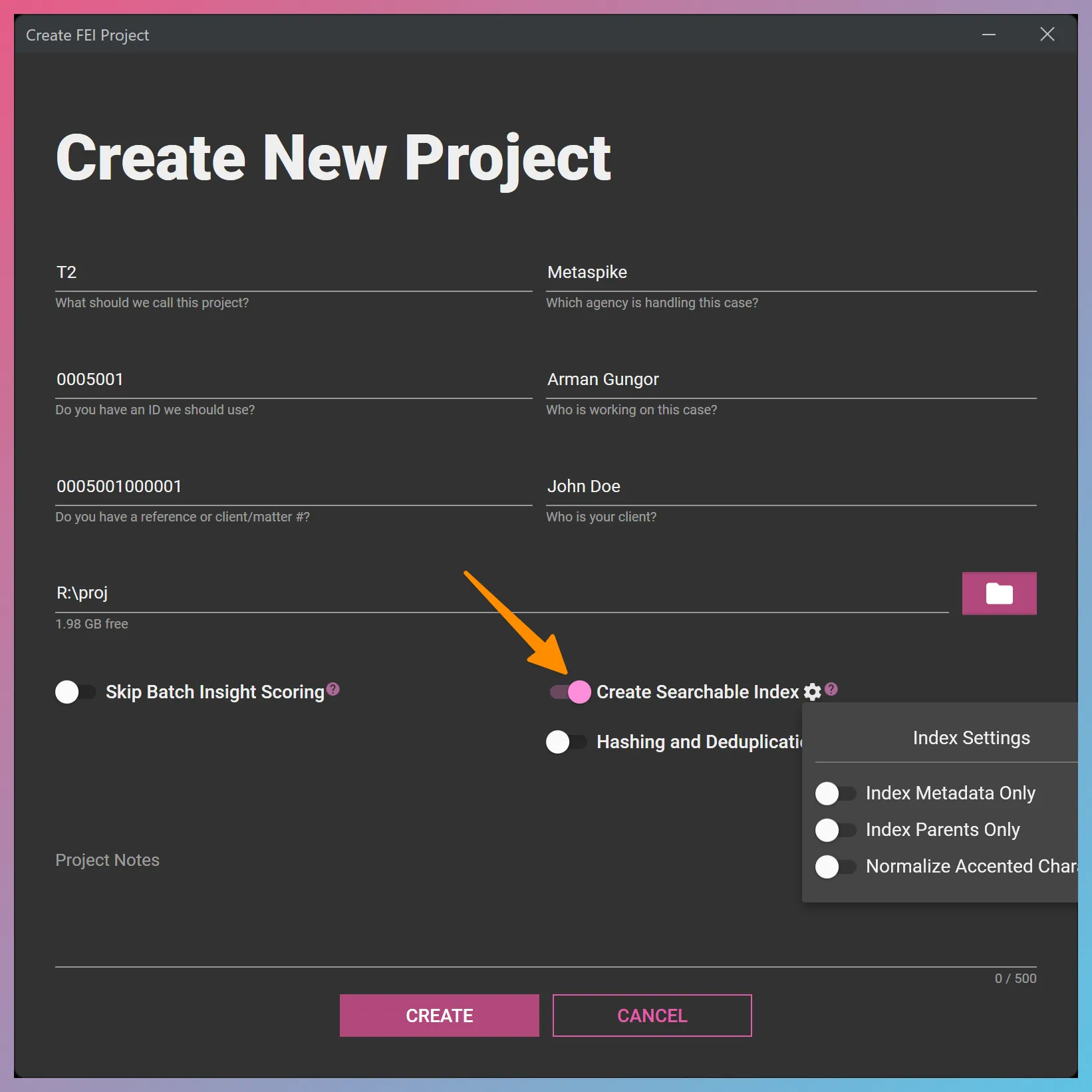
Index Settings
Section titled “Index Settings”The Index Metadata Only and Index Parents Only options are deselected by default and control whether the indexing should be limited to item metadata only (as opposed to entire item contents) and to parent items only (as opposed to parents and their children), respectively.
The Normalize Accented Characters option controls whether or not the search index is sensitive to accented characters. For example, when the option is turned off, finding the string résumé requires searching for the string résumé. When the option is turned on, searching for resume would also find occurrences of the string résumé.
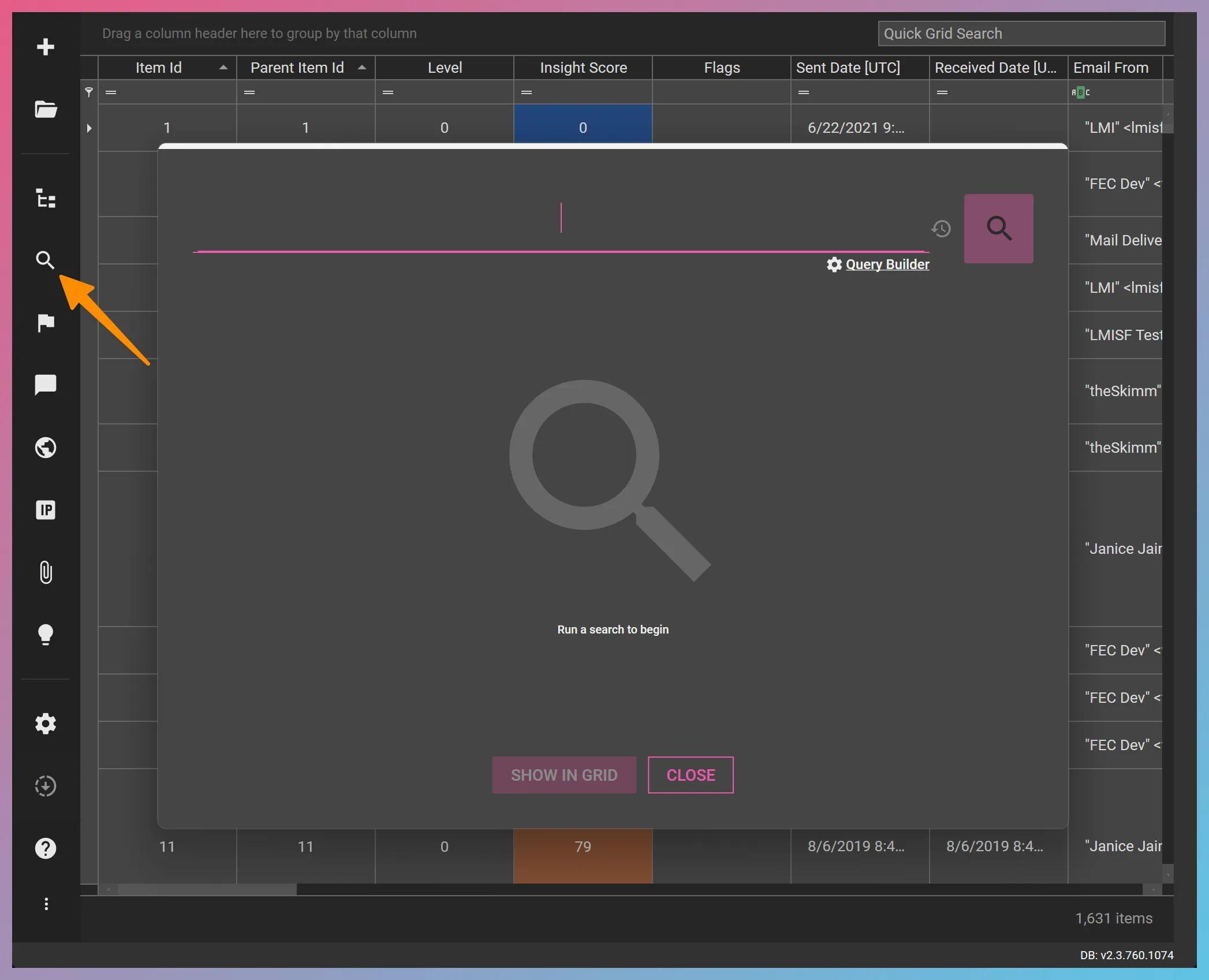
Launching Index Search
Section titled “Launching Index Search”Within an FEI project with a searchable index, the Index Search interface can be launched by clicking the respective toolbar icon or using the
Index Search History
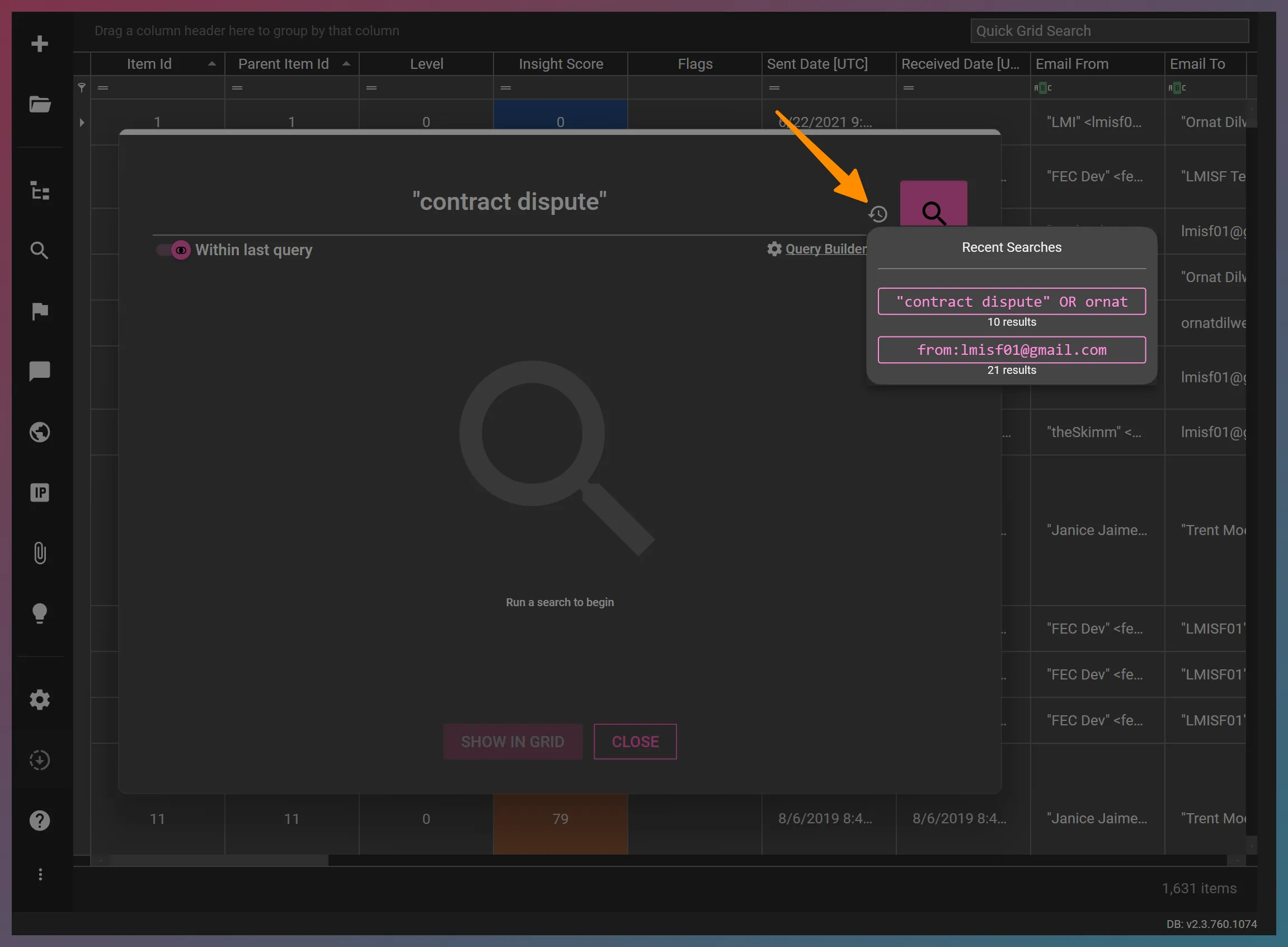
Section titled “Index Search History”Previously-executed Index Search entries can be accessed as in the screenshot below. Clicking on a historical search entry causes that search to be re-executed.
Search within Search
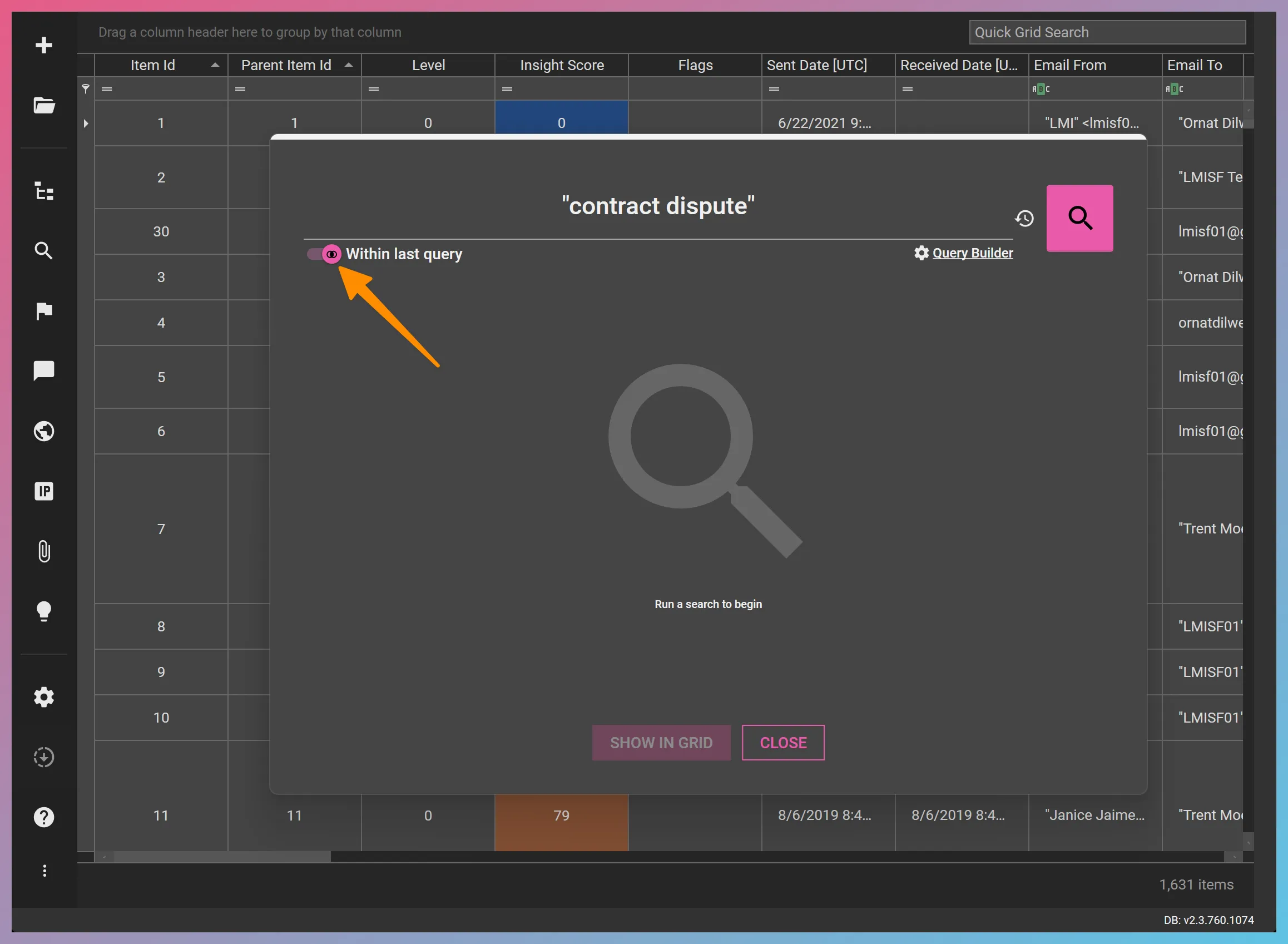
Section titled “Search within Search”The Within last query search option causes a new search to be intersected with the last search—in essence, causing the new search to be run within the last search.
Flagging Search Results
Section titled “Flagging Search Results”After you execute a search, you can quickly bring up the Apply Flags user interface via the IOCs flag.
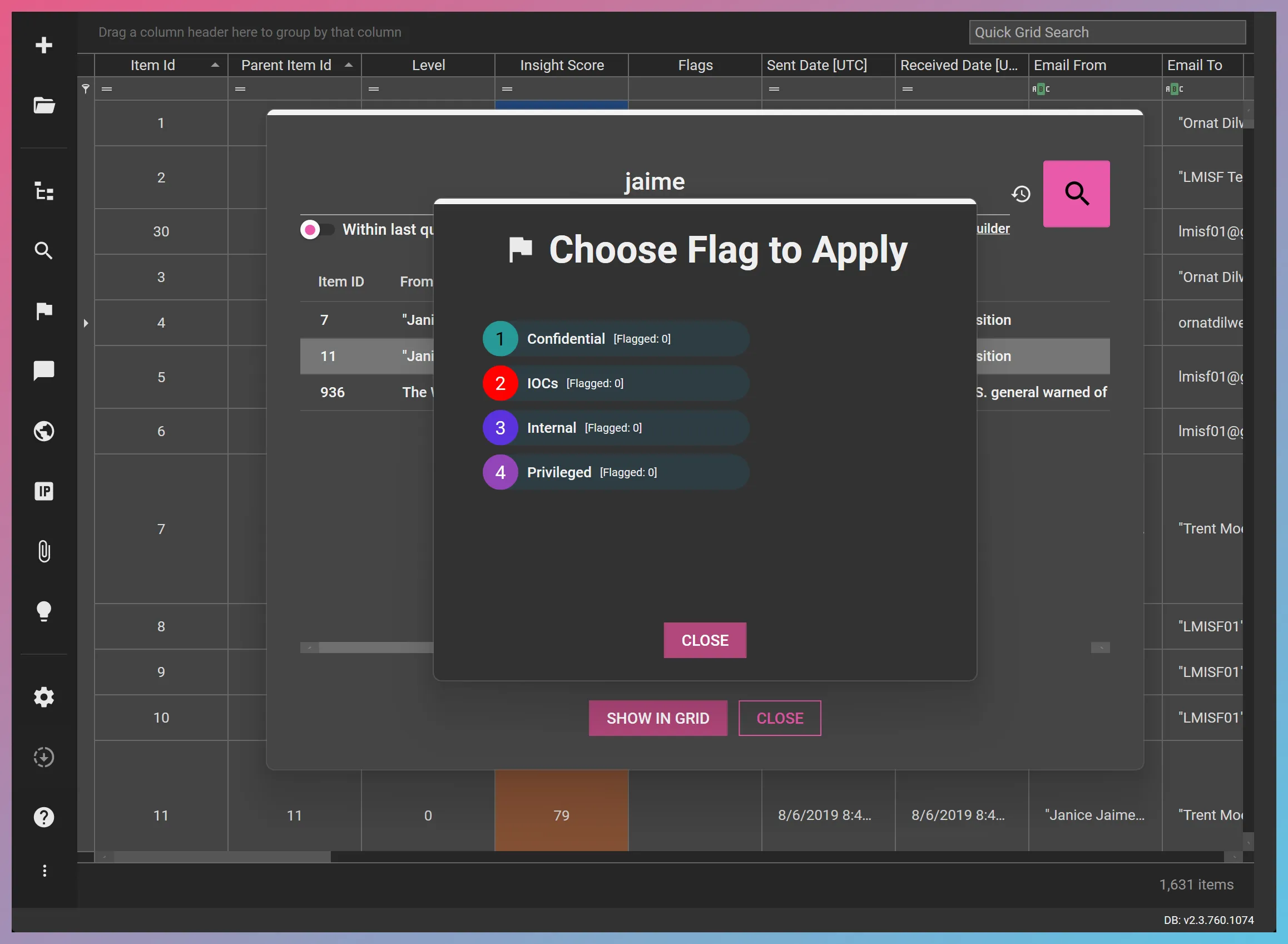
Alternatively, you can click the
Index Search Syntax
Section titled “Index Search Syntax”Phrases
Section titled “Phrases”In order to treat a term as a phrase, enclose it in double quotes. Example:
"contract dispute"
Field Searches
Section titled “Field Searches”You can restrict your query to a specific field by typing the field name followed by a colon. Otherwise, the search will be performed on the contents field. All field names should be typed in lowercase.
Example 1:
from:hello@metaspike.comExample 2: Looking for an exact value in a field
xmailer:"outlook 14.0"Example 3: Looking for a value with a wildcard in a field
xmailer:(outlook AND 14*)Example 4: Looking for items with some value in a field
xoriginatingip:*Fields
Section titled “Fields”The following fields are supported:
| Field | Description |
|---|---|
| from | The sender of the email. |
| to | The recipient(s) of the email. |
| cc | The carbon copy recipients of the email. |
| bcc | The blind carbon copy recipients of the email. |
| subject | Email subject. |
| attachmentnames | Names of the attachments of the email. |
| messageid | Message-ID of the email as defined in RFC 5322. |
| mimeboundary | The MIME boundary of an email. |
| headers | MIME headers of the email. |
| contents | A combination of the extracted text and metadata of the email. If the option to include attachments in the inline search was selected, this field also covers the text and metadata extracted from the attachments of the email. This is the default field that is searched when no field is specified. |
| earliestdate | The earliest timestamp identified within the email. If the option to include attachments in the inline search was selected, timestamps encountered in the attachments of the email are also taken into account. |
| latestdate | The latest timestamp identified within the email. If the option to include attachments in the inline search was selected, timestamps encountered in the attachments of the email are also taken into account. |
| received | The received date of the email if it has trace headers. |
| sent | The origination date of the email. |
| startdate | The start date of a calendar event. |
| enddate | The end date of a calendar event. |
| creationdate | Internal creation data metadata. |
| modificationdate | Internal last modification date metadata. |
| fscreationdate | Internal date or creation date server metadata where applicable. |
| fsmodificationdate | Modification date server metadata where applicable. |
| filename | The file name file system metadata for an item. |
| filepath | The file path file system metadata for an item. |
| xoriginatingip | The X-Originating-IP MIME header. |
| xmailer | The X-Mailer MIME header. |
Date Searches
Section titled “Date Searches”Date searches are performed as follows:
sent:[2021/01/20 TO 2022/03/14]The above query would search for emails whose origination date is between January 20, 2021 and March 14, 2022.
When higher precision is desired, timestamps can be provided in full including the time component in 24-hour format. In this form, the timestamps should be enclosed in double-quotes. Timestamps are specified in UTC.
Example:
sent:["2021/01/20 13:51:05" TO "2022/03/14 14:45:13"]Boolean Operators
Section titled “Boolean Operators”The AND, OR, and NOT Boolean operators are supported. When no Boolean operator is specified between terms, the AND operator is used. Boolean operators must be in all caps.
Negative Searches
Section titled “Negative Searches”If you have both positive and negative terms, you can compose your search using the <positive terms> NOT <negative terms> structure. For example:
subject:documents NOT subject:businessIf you do not have any positive terms (i.e., your entire search is a negative search), then you can compose your search as follows:
*:* NOT subject:businessRegular Expression Searches
Section titled “Regular Expression Searches”When performing regular expression searches, the regex pattern should be enclosed between forward-slash (”/”) characters. Example:
/m[ae]ssage/ would find documents containing massage or message .
Wildcard Searches
Section titled “Wildcard Searches”The * wildcard serves as a multiple-character wildcard while the ? character serves as a single-character wildcard. Example:
pro?e would match prove and probe
exam* would match exam , examine , and example
Proximity Searches
Section titled “Proximity Searches”Proximity searches can be performed using the ~n syntax. Example:
"contract dispute"~5 would search for instances where contract and dispute are within 5 words of each other.
Fuzzy Searches
Section titled “Fuzzy Searches”Fuzzy searches match terms based on the Damerau-Levenshtein distance. In order to perform a fuzzy search, use the ~ symbol at the end of a single-word term. The default allowed distance is 2.
Example:
position~ would match position , positive , and potion as all three terms are 2 Edit Distances (default) apart.
If you would like to specify the maximum allowed Damerau-Levenshtein distance, enter it following the ~ . For example:
position~1 would not match positive or potion , but it would match positron
Grouping
Section titled “Grouping”Subqueries can be grouped using parentheses. Example:
(dispute OR conflict) AND contract
Grouping can also be performed within a field. Example:
subject:(vehicle AND theft) would search for documents where both vehicle and theft are present in the subject field.
Example Searches
Section titled “Example Searches”"contract dispute" OR "intellectual property" OR inspect* searches for two phrases and a wildcard term in the default (contents) field.
subject:mike attorney searches for documents whose subject contains mike and the default field (contents) contains attorney . Because a Boolean operator is not specified, the AND is implied.
headers:/74\.([0-9]{1,3})\.([0-9]{1,3})\.([0-9]{1,3})/ AND "intellectual property"~2 searches for emails with IP addresses in their MIME headers that start with 74., and contain intellectual and property within two words of each other.
messageid:"614132532.2689721.1583268318358@mail.yahoo.com" searches for emails with a specific Message-ID.
Supported Attachment Types
Section titled “Supported Attachment Types”The following types of attachments are currently supported:
eml, msg, xls, xlsx, pdf, pptx, doc, rtf, docx, zip, tar, xz, lzma, gz, bz2, rar, 7z, deb, ar, a, lib, iso, vhdx, vhd, wim, swm, esd, vmdk, text-based files (e.g., txt, log, csv, tsv, etc.), HTML, XML, ics, vcf