

Providing Your Own Google API Credentials
Forensic Email Collector (FEC) can connect to Gmail and Google Workspace (formerly called G Suite) accounts using IMAP or Google APIs. When using Google APIs, FEC uses its built-in client application registered with Google API Console for OAuth 2.0 authentication. So, by default, you do not need to create your own OAuth 2.0 credentials.
If you would like to register your own application and use it with FEC instead, you can do so as follows:
-
Visit Google Cloud Console ↗.
-
Select an existing project, or create a new one by clicking on the New Project button.
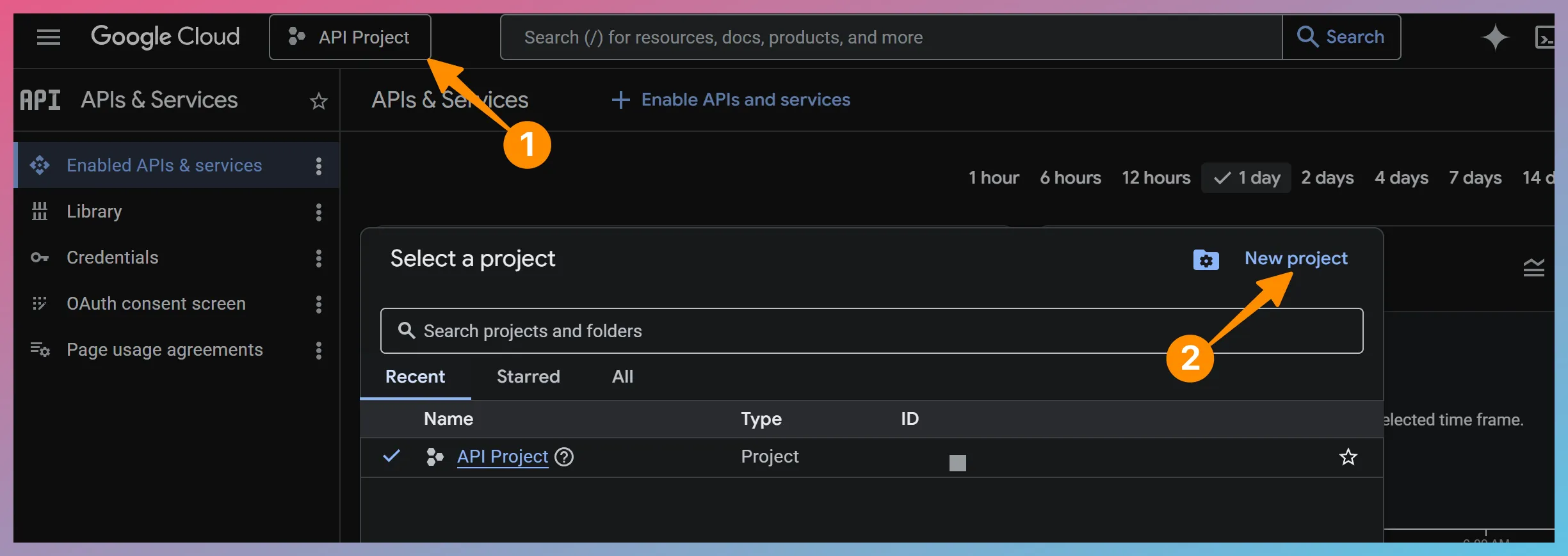
-
Choose the Library menu on the left side of the page and enable Gmail API, Google Calendar API, and Google Drive API.
-
Click OAuth Consent Screen and choose Overview > Get Started.
-
Give your App a name and choose support and developer email addresses. No need to complete the optional fields.
-
For Audience, choose External.
-
Complete the remainder of the wizard by accepting default values.
-
Go to Audience and click Publish app.
-
Go to Clients -> Create client and click +Create client
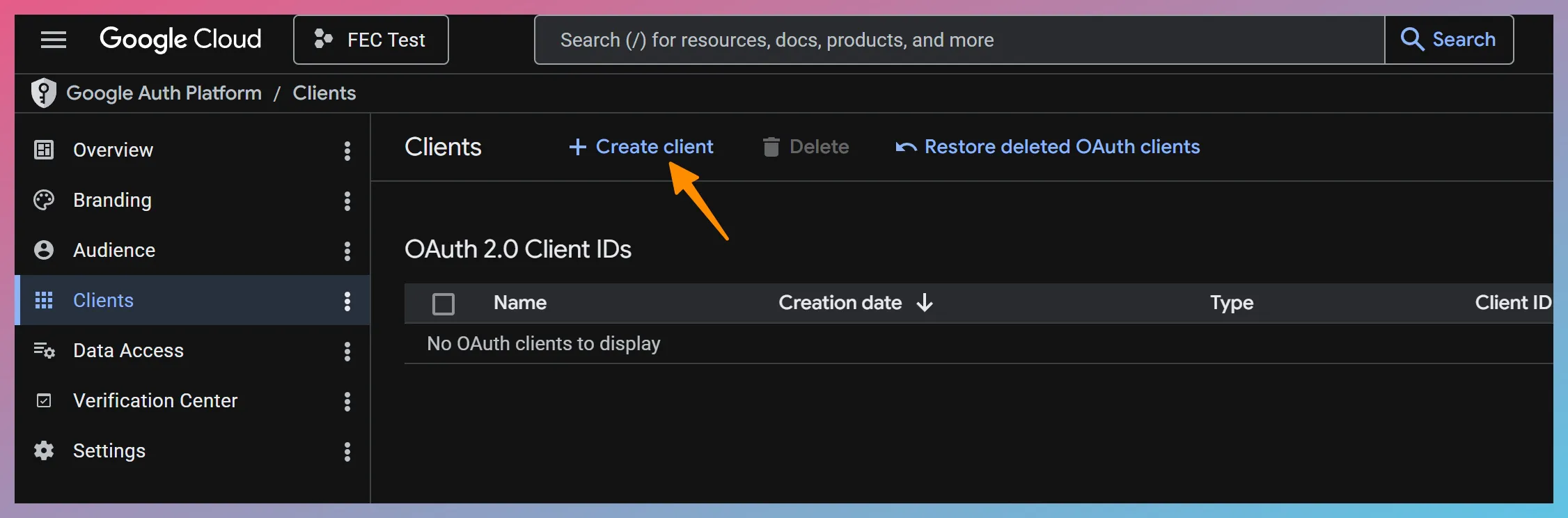
-
Choose Desktop app as the type of application, and give your App a name.
-
Click
Create Create . You will be presented with your Client ID and Client Secret.
You can then click the Provide Your Own API Credentials… link on the Connection Settings page in FEC as shown below:
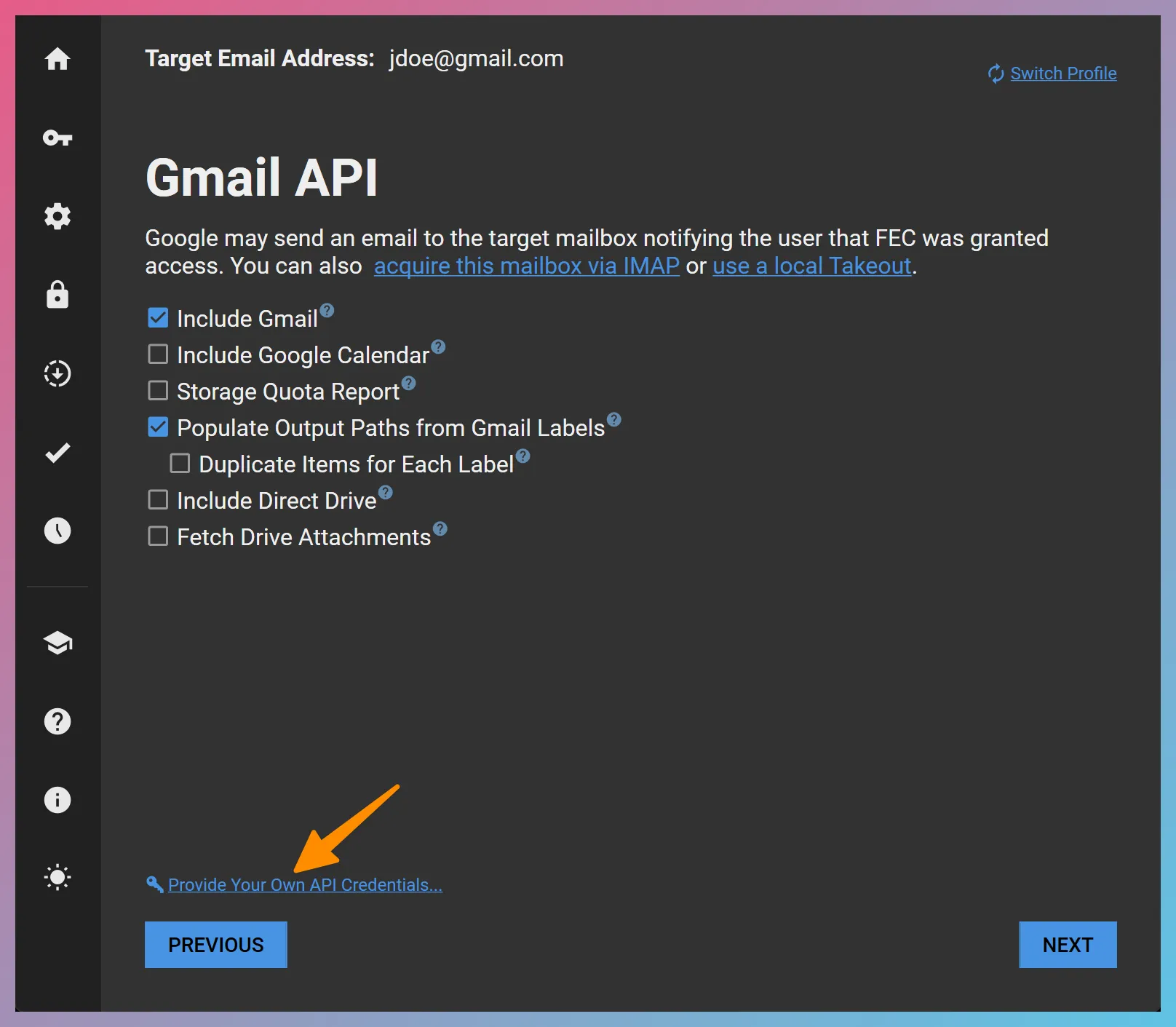
This will open a window where you can enter your Client ID and Client Secret provided by Google API Console as shown below.
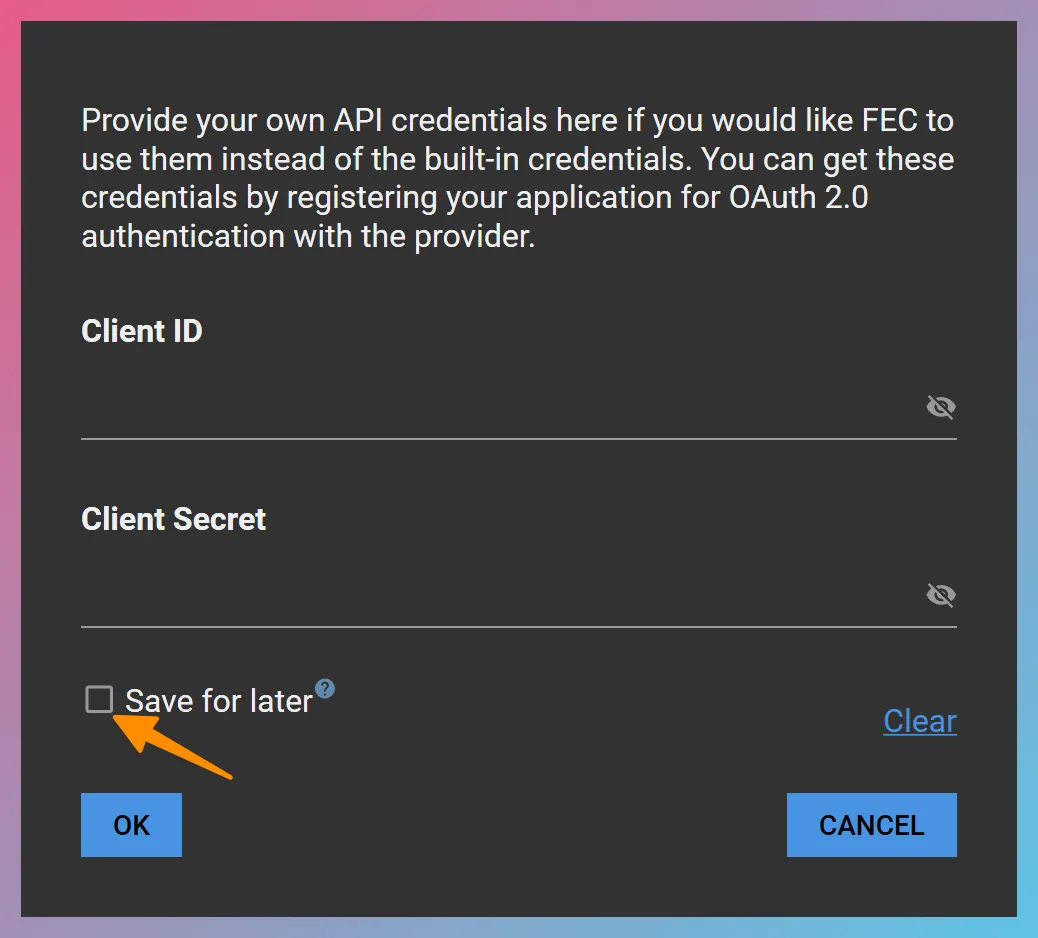
When you click
If you would like to clear previously saved credentials, click the Clear hyperlink, check the Save for later checkbox, and click