

Gmail Output Options
Forensic Email Collector (FEC) provides four options for outputting email data acquired from Gmail / Google Workspace (formerly called G Suite) accounts:
1. Foldered Output via IMAP
Section titled “1. Foldered Output via IMAP”FEC is able to connect to Gmail / Google Workspace accounts via IMAP and via Gmail API. In order to connect to Gmail via IMAP, you can click the acquire this mailbox via IMAP hyperlink as in the screenshot below.
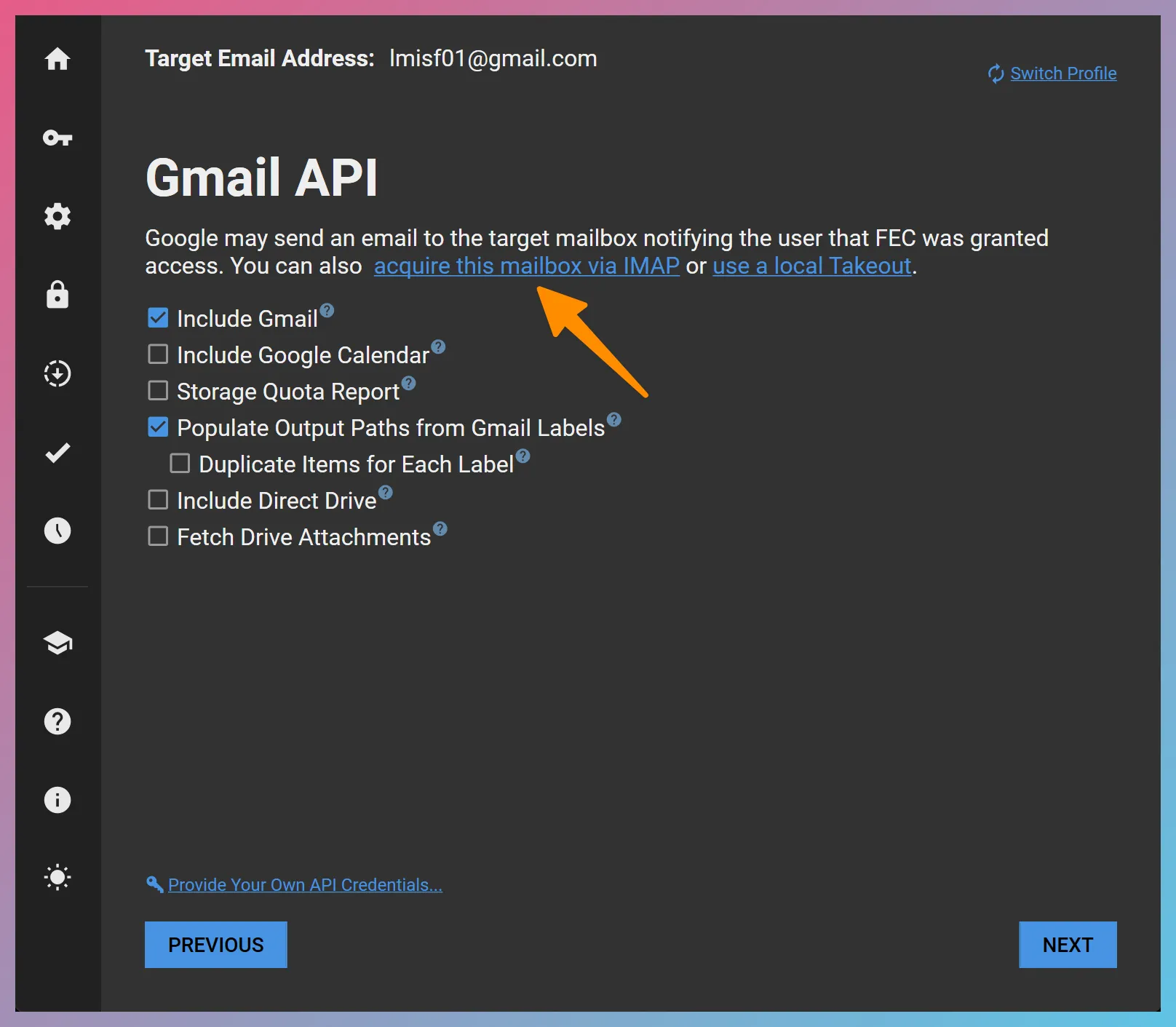
When you acquire a Gmail mailbox via IMAP, Gmail’s IMAP server will present each message multiple times under virtual folders that correspond to each Gmail label. For example, if a message had the labels LabelA, LabelB, and LabelC applied to it, the output would be as follows:
DirectoryLabelA
- 0000001.eml
DirectoryLabelB
- 0000002.eml
DirectoryLabelC
- 0000003.eml
In this scenario, “0000001.eml”, “0000002.eml”, and “0000003.eml” are duplicate copies of the same message presented by Gmail’s IMAP server under each applicable Gmail label.
2. Foldered Output via Gmail API (default)
Section titled “2. Foldered Output via Gmail API (default)”By default, FEC connects to Gmail and Google Workspace mailboxes using Gmail API. If you select the Populate Output Paths from Gmail Labels option, FEC will create a folder structure for each message based on its Gmail labels. When creating the folder structure, FEC analyzes the Gmail labels of each message and picks one representative label. User labels such as “My Business Documents” are favored over system labels such as “CATEGORY_PERSONAL”.
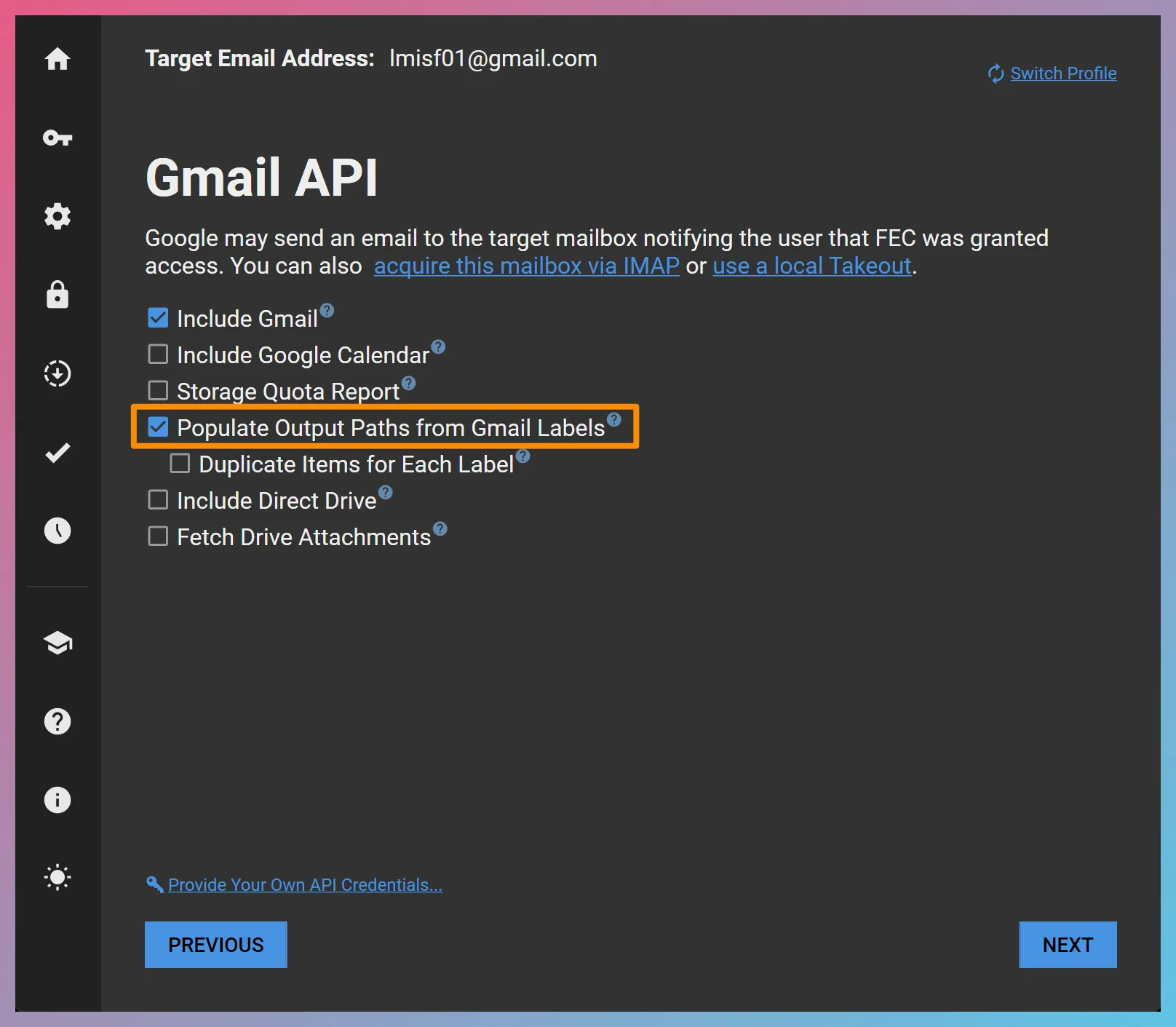
Following the same example, a message with the labels LabelA, LabelB, and LabelC would be output as follows:
DirectoryLabelA
- 0000001.eml
All of the labels applied to the message would be listed in the Downloaded Items Log inside the “Logs” folder in the output directory. For this message, an excerpt from this log would look as follows:
| ID | Service ID | MIME Path | Gmail Labels |
|---|---|---|---|
| 1 | 166a6acbb66d45ed | LabelA\0000001.eml | LabelA;LabelB;LabelC |
Please note that:
- Each message is acquired only once, saving time and bandwidth, and avoiding unnecessary duplication.
- All Gmail labels that were applied to each message are listed in the Downloaded Items Log. This information can be imported into a multi-value field in your eDiscovery or digital forensics tools so that all of the labels can be reviewed and queried.
3. Foldered Output Duplicated for Each Label via Gmail API
Section titled “3. Foldered Output Duplicated for Each Label via Gmail API”In some cases, you may want to have your output folder structure reflect the Gmail labels—as in IMAP—but you may want to take advantage of the performance and search capabilities of Gmail API. You can accomplish this by checking both the Populate Output Paths from Gmail Labels and the Duplicate Items for Each Label options as shown below:
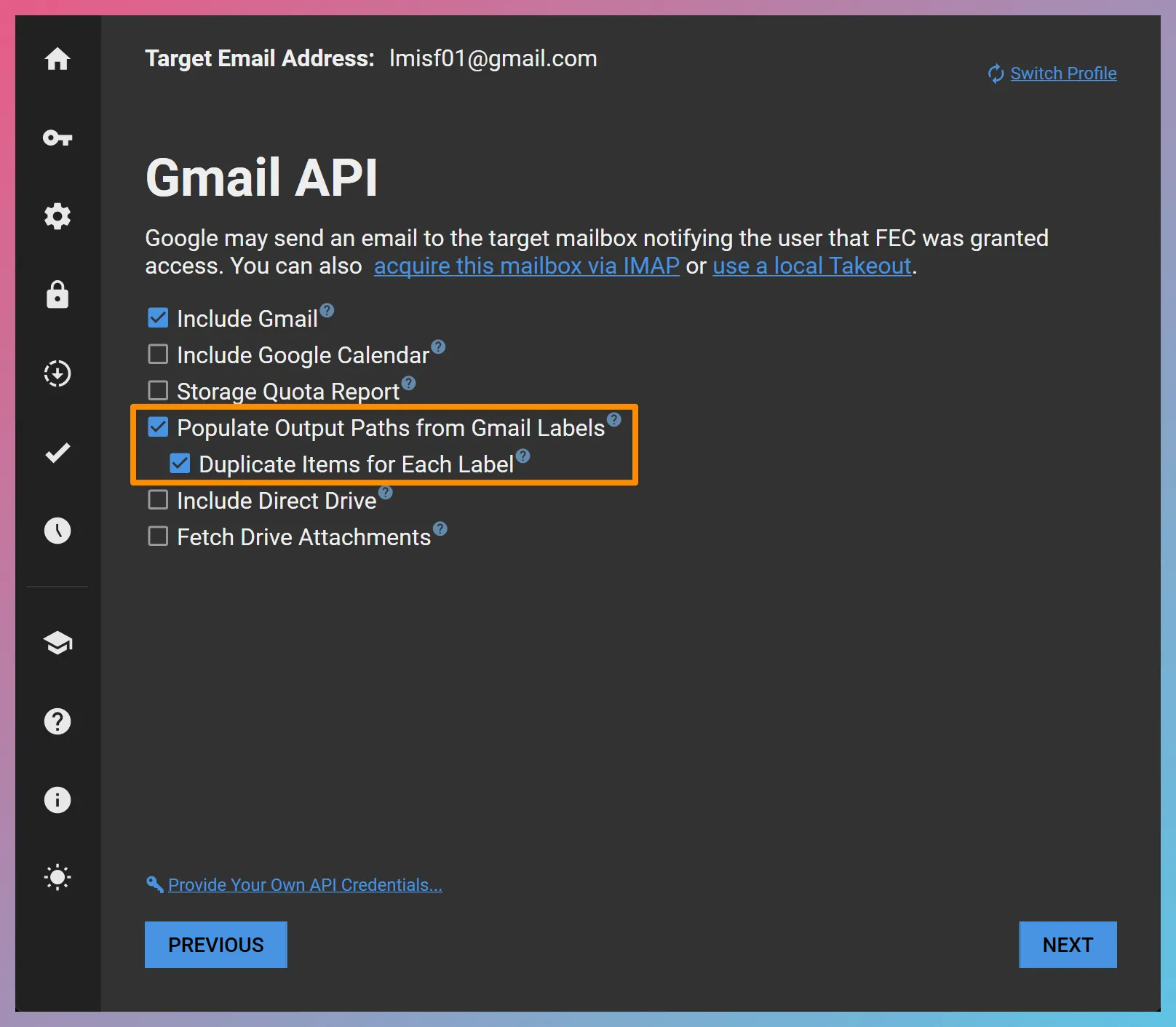
In this output mode, FEC acquires each message from the server once, but it outputs it multiple times under each Gmail label. The output for our example message would be as follows:
DirectoryLabelA
- 0000001.eml
DirectoryLabelB
- 0000001.eml
DirectoryLabelC
- 0000001.eml
Please note that:
- The file names for the duplicate copies of the message are the same. This helps identify which files are duplicated under multiple labels.
- In an effort to simulate Gmail’s IMAP output, FEC suppresses output for certain Gmail system labels such as “CATEGORY_PERSONAL”, “CATEGORY_SOCIAL”, “CATEGORY_PROMOTIONS”, “CATEGORY_UPDATES”, “CATEGORY_FORUMS”, and “UNREAD”.
4. Flat Output via Gmail API
Section titled “4. Flat Output via Gmail API”When acquiring from Gmail via Gmail API, it is also possible to output the messages into a flat folder structure and capture the label information only in the “Downloaded_Items.tsv” file. You can achieve this by unchecking the Populate Output Paths from Gmail Labels option. With the Populate Output Paths from Gmail Labels option unchecked, FEC outputs all the messages in a single folder named “All Mail”. The output for the example message would be as follows:
Directory
All Mail- 0000001.eml
This method has the same benefits as the Foldered Output via Gmail API method, and it also makes it easier to work with the output messages as they are in a single folder.