

Whitelisting FEC in Google Workspace
Google Workspace allows administrators to restrict access to specific Google Workspace services. If a service is restricted, users cannot authorize third-party applications to access that service unless the specific app had already been trusted.
You can add Forensic Email Collector (FEC) to the trusted apps list as follows:
- Visit the Google Admin console of the target organization — https://admin.google.com/.
- Navigate to Security ➫ Access and data control ➫ API controls.
- Click on the MANAGE APP ACCESS button.
- Open the Configure new app menu.
- In the window that opens, type
Forensic Email Collectorand click theSearch Search button. - You should see FEC as the only result. It should be listed as “Verified” and with “Very high” usage.
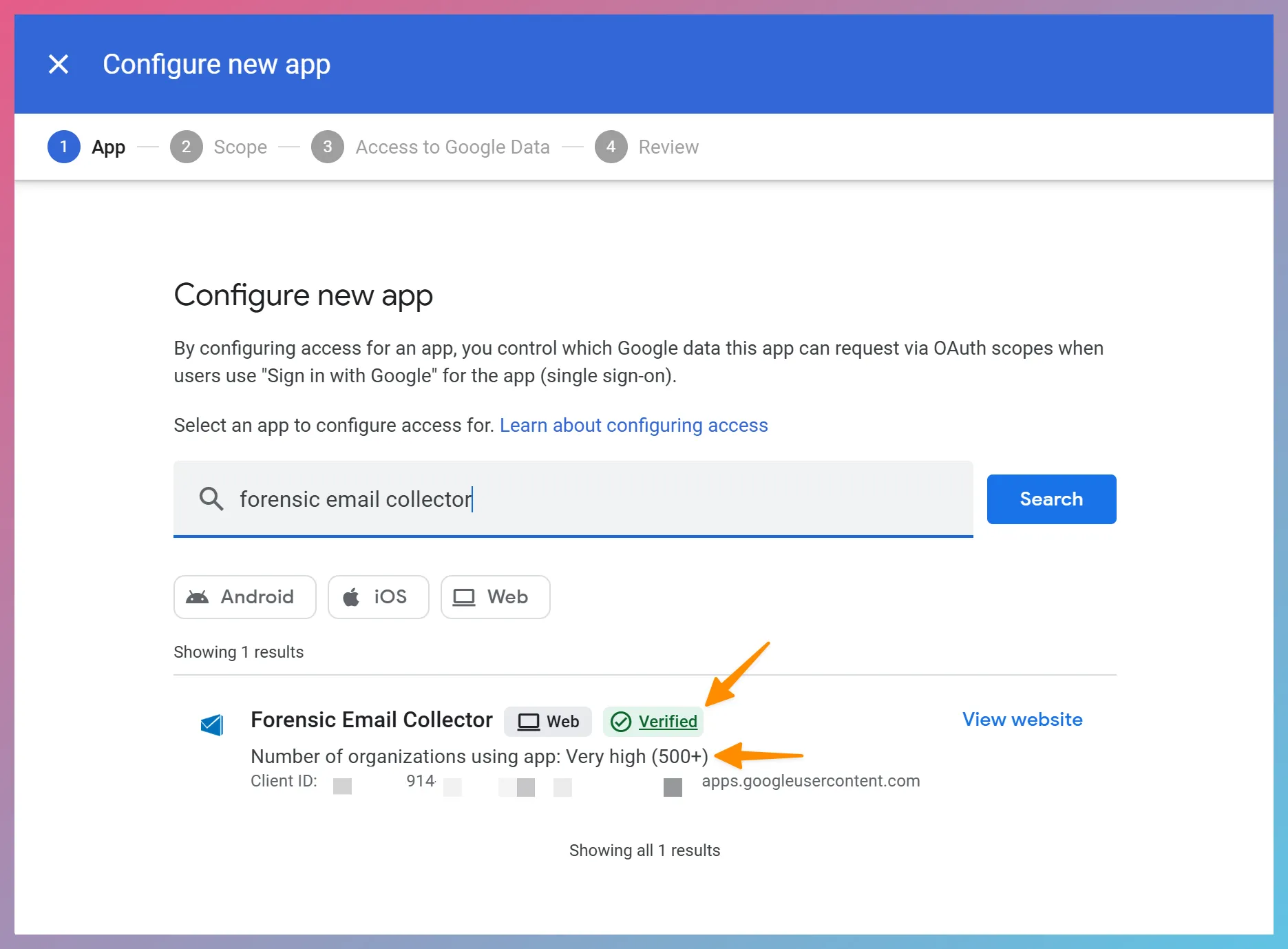
- On the next screen, select which organizational units FEC should be able to access.
- On the next screen, select Trusted or Specific Google Data and click the
Continue Continue button. - After the acquisition is complete, revisit the App Access Control page by clicking the MANAGE APP ACCESS button and remove Forensic Email Collector from the list of trusted apps.
Reference: Control which third-party & internal apps access Google Workspace data ↗