

Collecting Data Using Suspects' Existing Login Sessions
Depending on applicable legislation, some law enforcement agencies have the authority to forensically collect a suspect’s data using an existing login session while executing a search warrant. However, agencies often do not have the authority to log into the suspect’s account after the fact—while performing analysis in the lab.
This presents a window of opportunity where agents can forensically preserve the data of an uncooperative suspect on-site. Forensic Email Collector (FEC) ↗ supports this workflow for Gmail, Google Workspace (formerly called G Suite), Microsoft 365, and personal Microsoft accounts (e.g., Hotmail, Outlook.com, etc.) via FEC Remote Authenticator. The forensic preservation may include data points such as emails, contacts, calendar events, as well as Google Drive, OneDrive, and SharePoint files.
Preparation
Section titled “Preparation”It is helpful to do the following ahead of time in preparation for the on-site work:
- Download FEC Remote Authenticator and copy it to a sanitized flash drive that will be inserted into the suspect’s computer. FEC Remote Authenticator is a self-contained executable that does not require installation or a license key.
- Install the full Forensic Email Collector software on the agency laptop.
- Depending on your license type, take your FEC dongle with you, or activate FEC on the agency laptop.
On-site Workflow Using Existing Login Session
Section titled “On-site Workflow Using Existing Login Session”While executing the search warrant, agents can forensically collect the suspect’s data as follows:
-
Plug the flash drive containing FEC Remote Authenticator into the suspect’s computer.
-
Execute FEC Remote Authenticator, enter the suspect’s email address, and click
AUTHENTICATE AUTHENTICATE .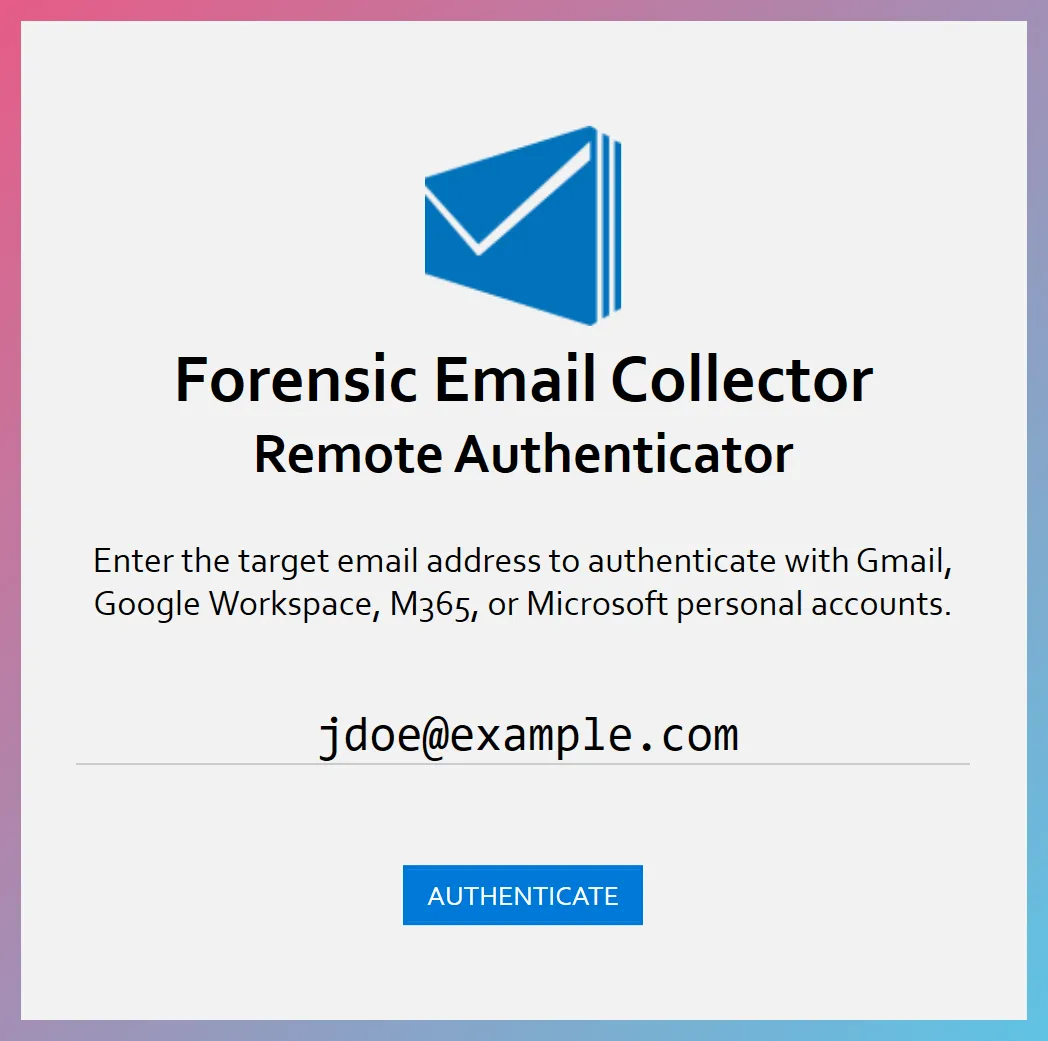
-
This will cause the default web browser on the suspect’s computer to be launched. Since the suspect is already logged in using their default web browser, the provider will not ask for credentials.
-
Follow the provider’s prompts to authorize access.
-
Click
SAVE SAVE and save the encrypted authentication token to the agency flash drive.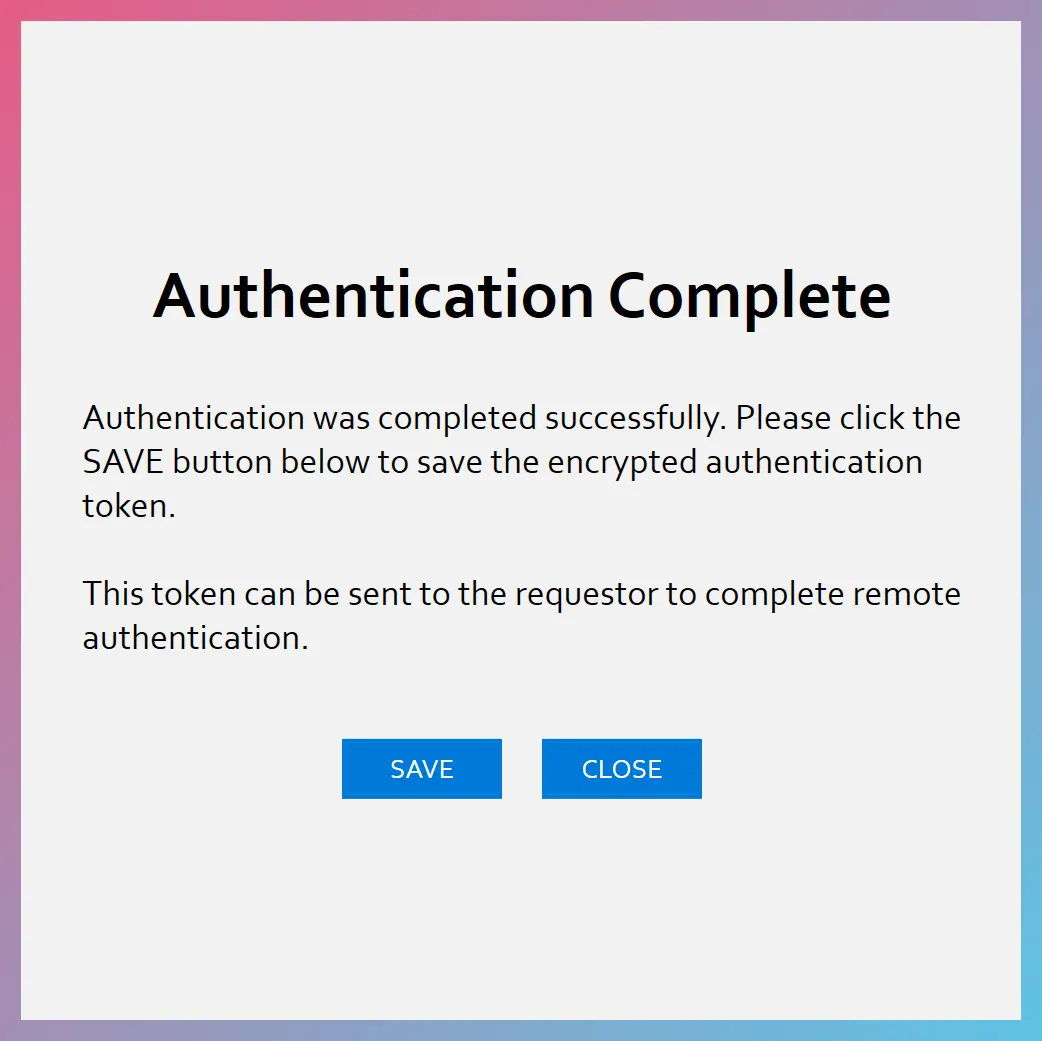
-
Disconnect the flash drive from the suspect’s computer and connect it to the agency laptop with the full installation of FEC.
-
Launch FEC on the agency laptop and switch to the Remote Authentication page.
-
Import the encrypted authentication token using the
IMPORT TOKEN IMPORT TOKEN button.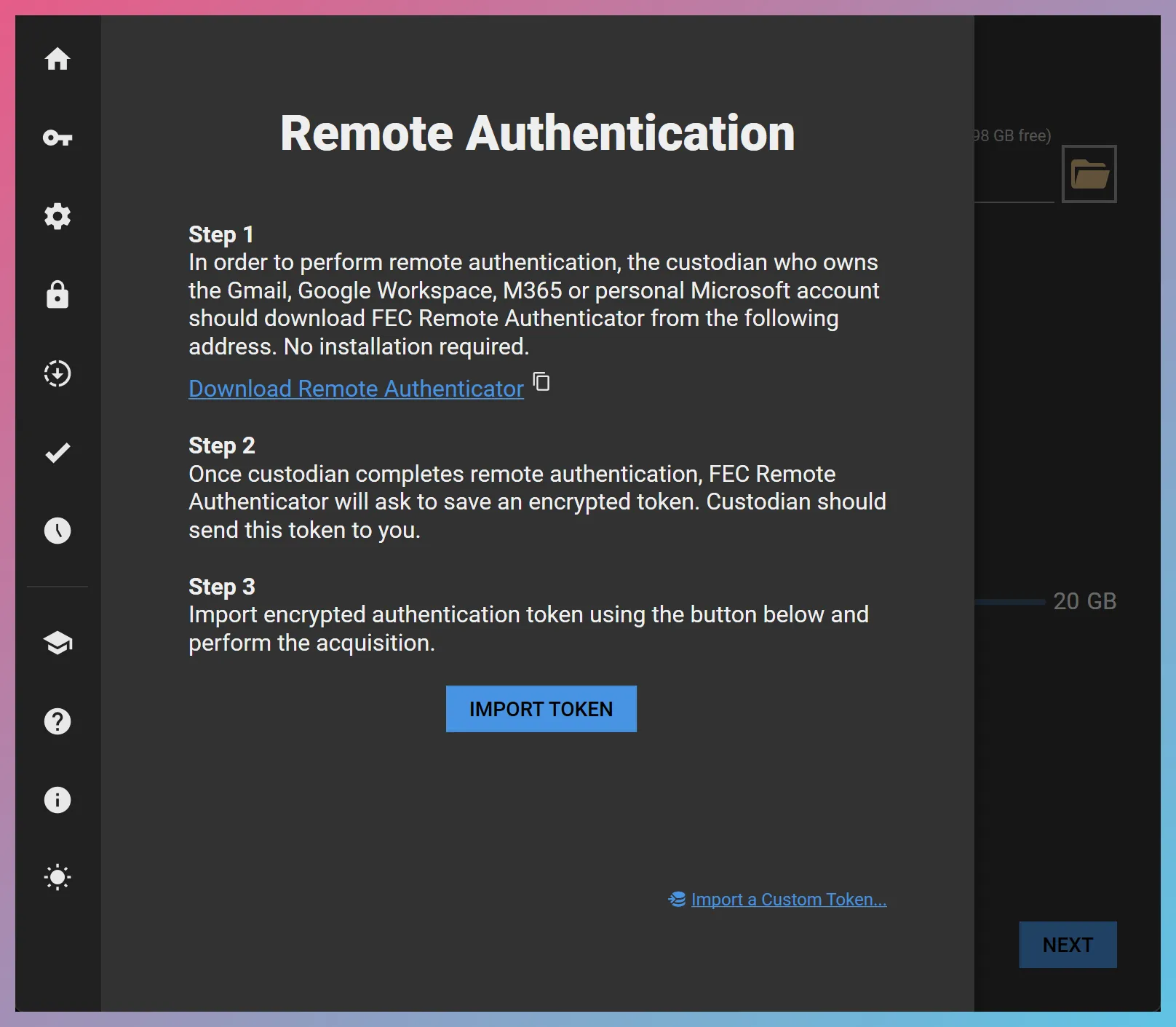
-
You can now enter the target email address and perform the forensic preservation without having to enter credentials. You can even use FEC’s In-place Search capabilities to search and filter the data before the acquisition and collect only the relevant items.