

Using FEC Remote Authenticator
Forensic Email Collector (FEC) Remote Authenticator is a standalone application that you can provide to the owner of a Gmail, Google Workspace (formerly called G Suite), Microsoft 365, or Microsoft personal (e.g., Hotmail, Outlook.com) email account so that they can authenticate you remotely. This can be especially useful when the custodian uses two-factor authentication. Using FEC Remote Authenticator, eDiscovery and digital forensics practitioners do not have to know the custodian’s email password at all.
The Remote Authentication workflow works as follows:
-
Custodian (owner of the mailbox) downloads a copy of FEC Remote Authenticator using the download link available on the FEC user interface under the Remote Authentication page.
-
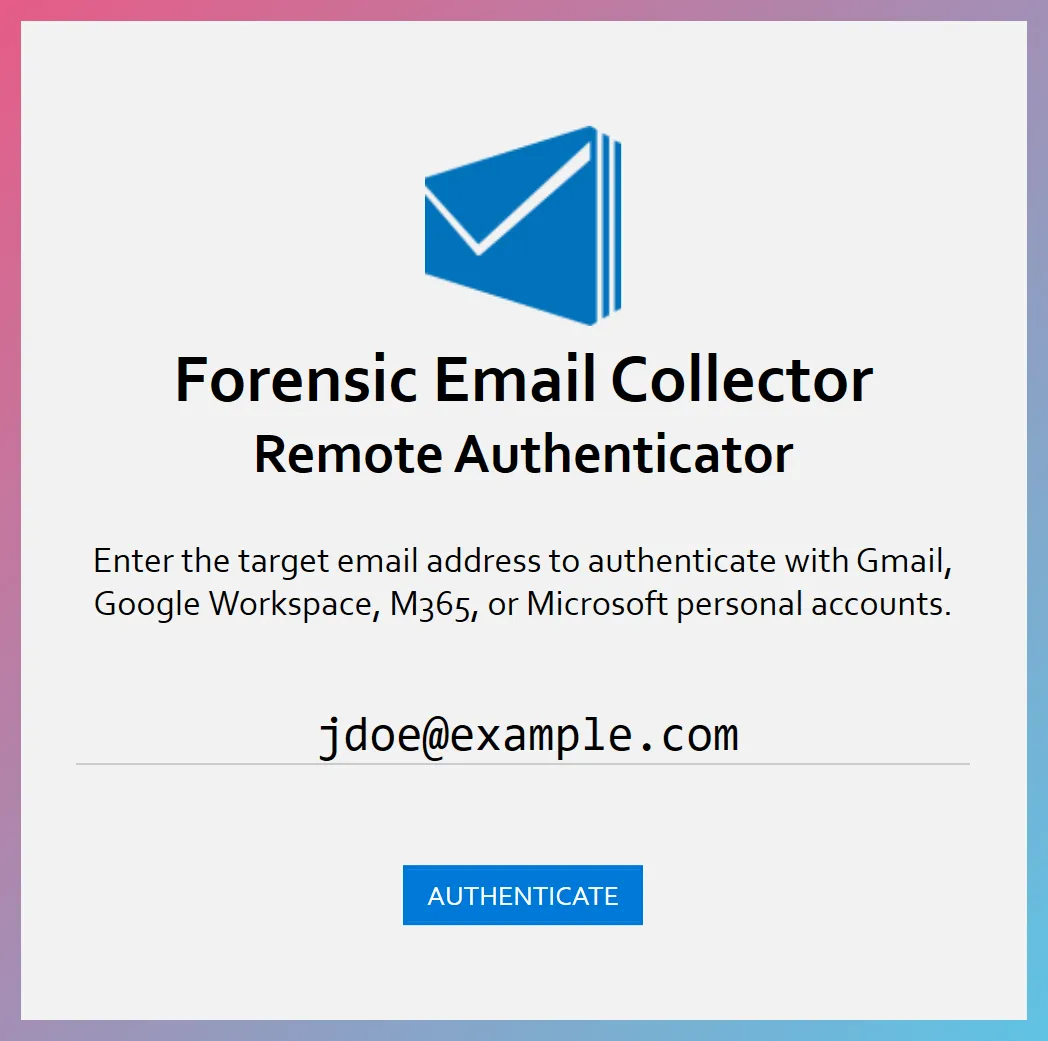
The custodian runs FEC Remote Authenticator and authenticates with Gmail, Google Workspace, or Microsoft business or consumer accounts using the same workflow as FEC.
FEC Remote Authenticator does not ask for the custodian’s password; the password is provided directly to Google or Microsoft. If two-factor authentication is enabled, the custodian can perform the two-factor authentication via the Gmail or Microsoft web interface as usual.
-
Once authentication is complete, the following screen is displayed where the custodian can save an encrypted FEC Remote Authentication Token.
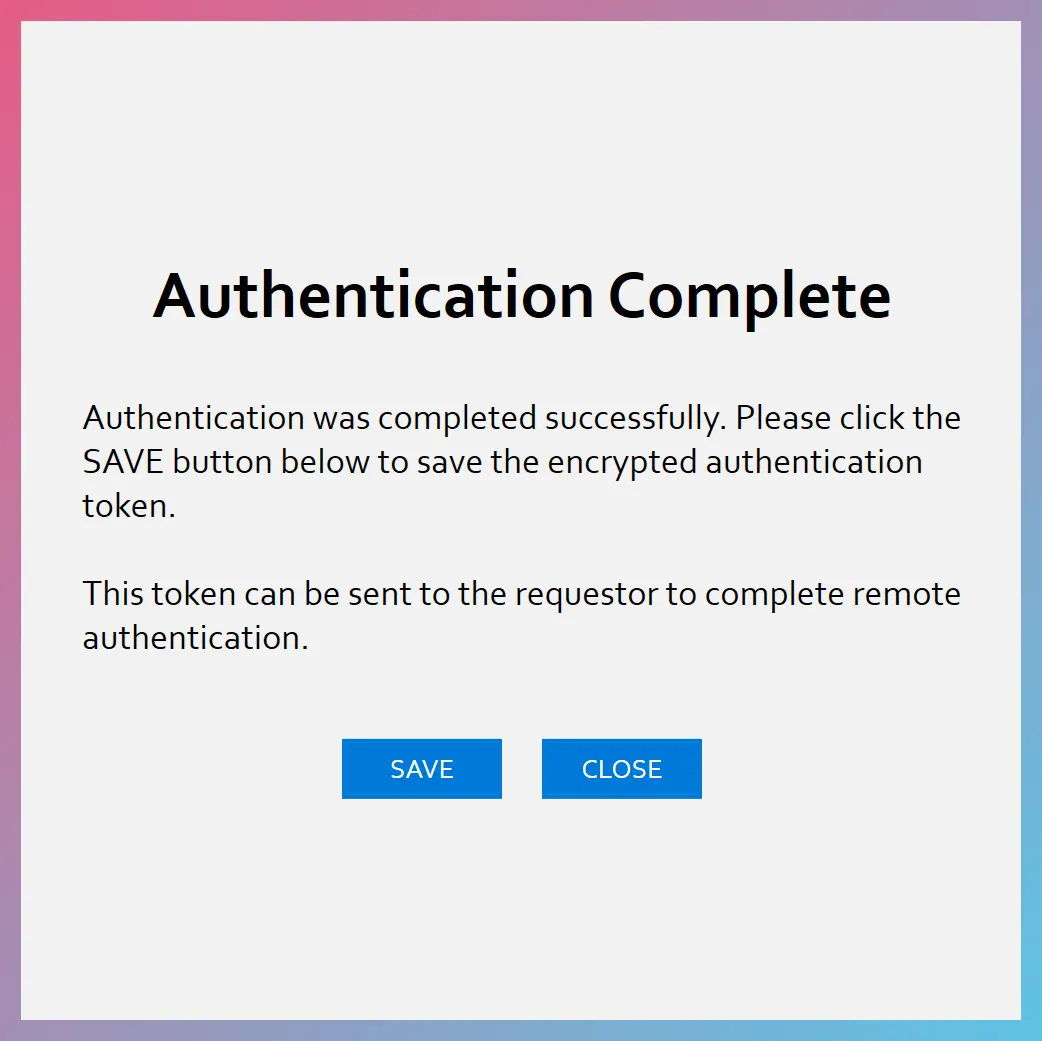
The saved token has a filename in the following format:
FECToken_<GUID>.FECtknOnce the token file is saved, the custodian can send the token file to the requestor using the channel where they ordinarily exchange sensitive files with each other (e.g., file transfer system, secure FTP, etc.)
-
Once the requestor receives the token file, they can launch FEC and import it using the Remote Authentication page as follows:
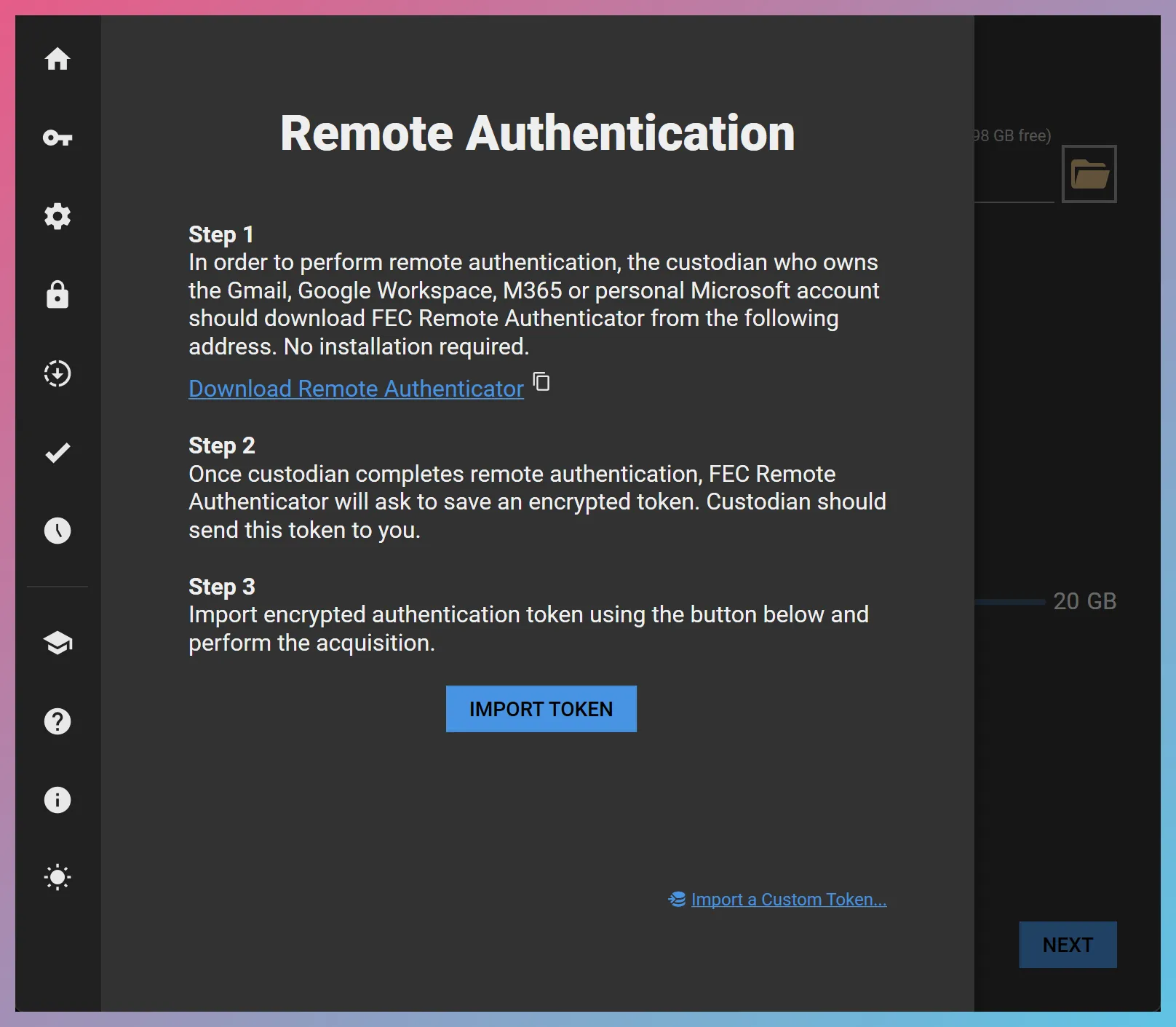
Once the token is imported, the requestor can perform the acquisition without having to authenticate with Gmail, Google Workspace, Microsoft consumer accounts, or M365 on their end.
-
Once email preservation is complete, the custodian can go to their account security settings and revoke access to FEC as described below.
Access Revocation
Section titled “Access Revocation”Gmail / Google Workspace
Section titled “Gmail / Google Workspace”-
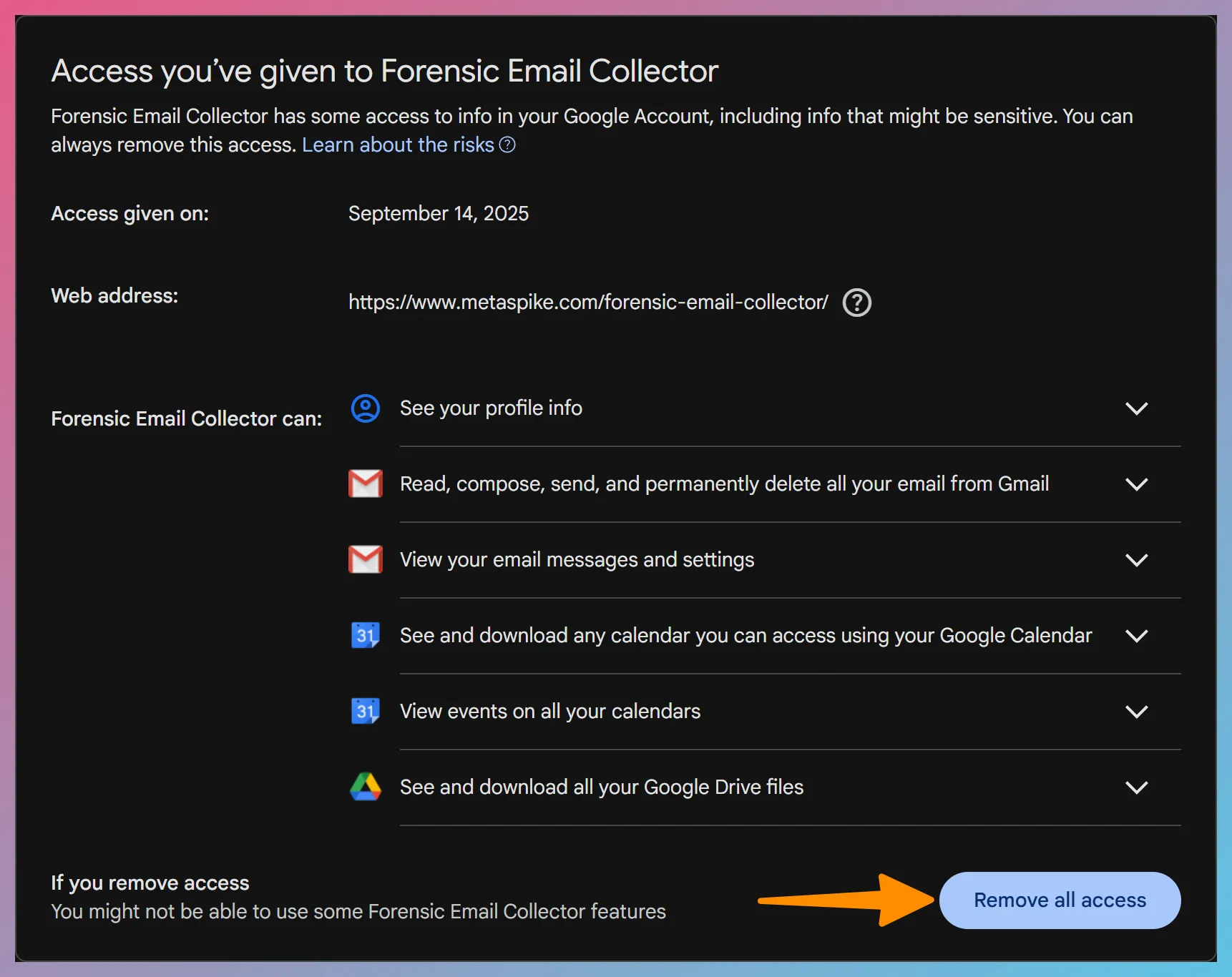
Expand Forensic Email Collector and click the
Remove all access Remove all access button.
Microsoft 365
Section titled “Microsoft 365”-
Click on the kabob menu on the top right corner of the FEC app and choose Manage your application. You can then revoke your consent as follows:
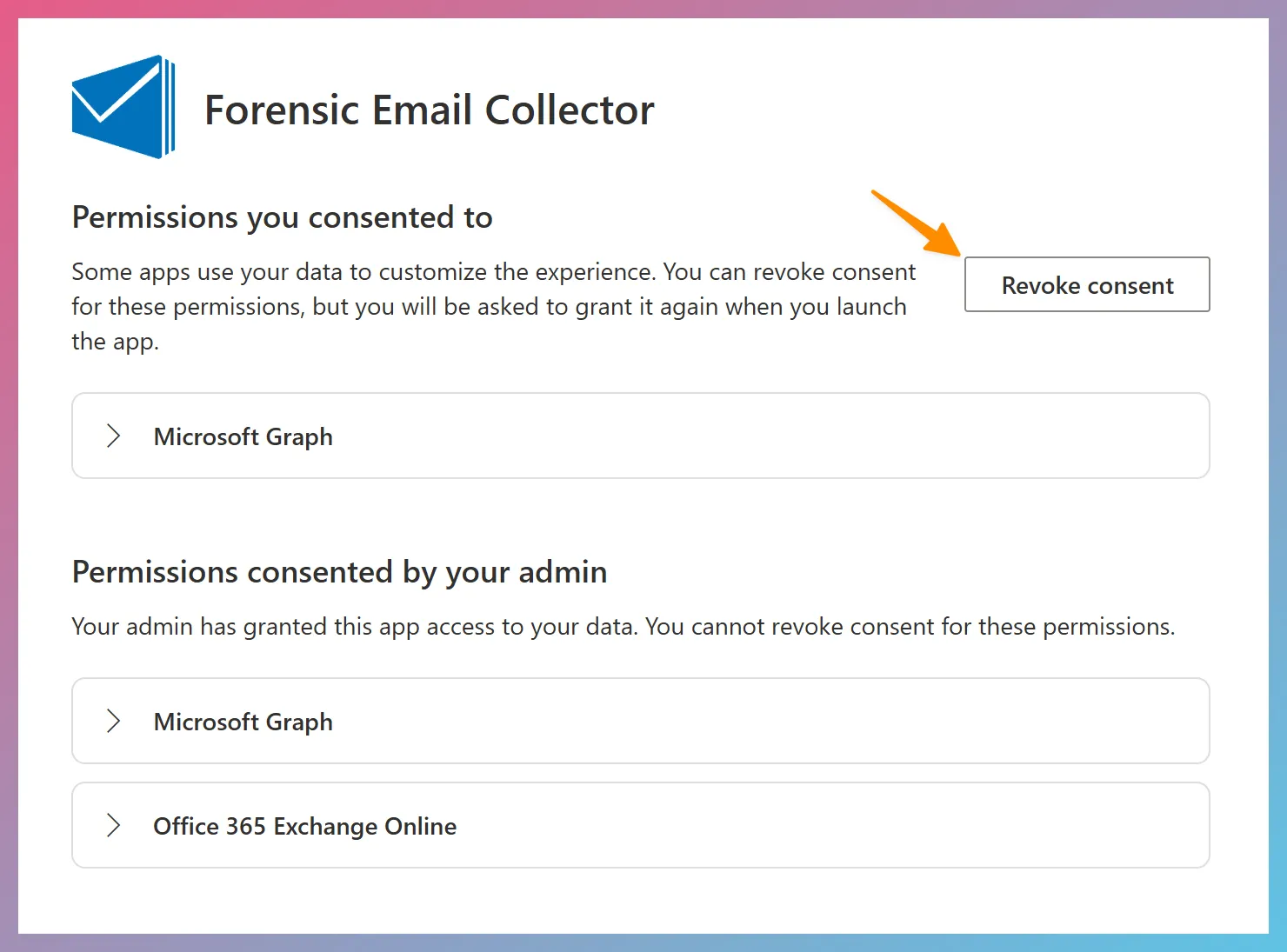
Alternatively, if the user has an administrator role, you can control access to the Forensic Email Collector application via Microsoft Azure Portal as follows:
-
Visit https://portal.azure.com
-
Navigate to Microsoft Entra ID > Manage > Enterprise Applications
-
Select the Forensic Email Collector application and click on Manage > Properties
Once access is removed, the FEC Remote Authentication Token will be invalidated. You can no longer use the token to access the custodian’s data.
Personal Microsoft Accounts
Section titled “Personal Microsoft Accounts”- Visit https://microsoft.com/consent
- Find the Forensic Email Collector entry and click Edit
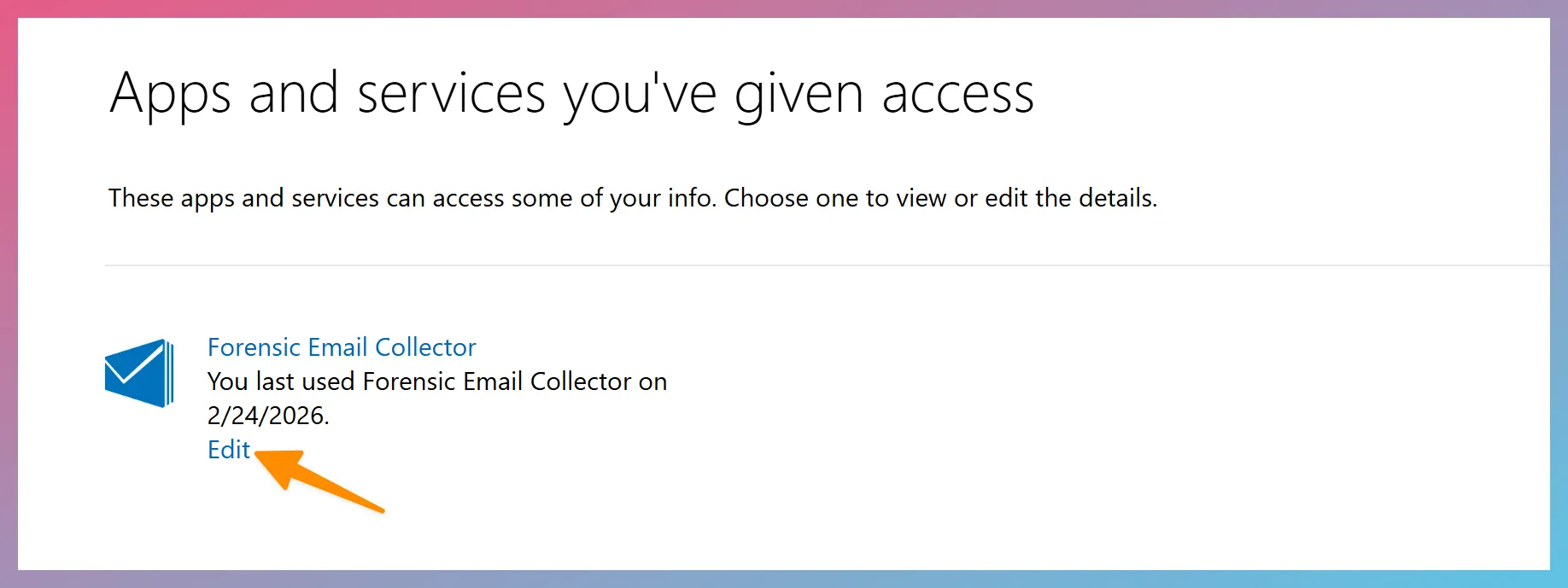
- Click the
Remove these permissions Remove these permissions button
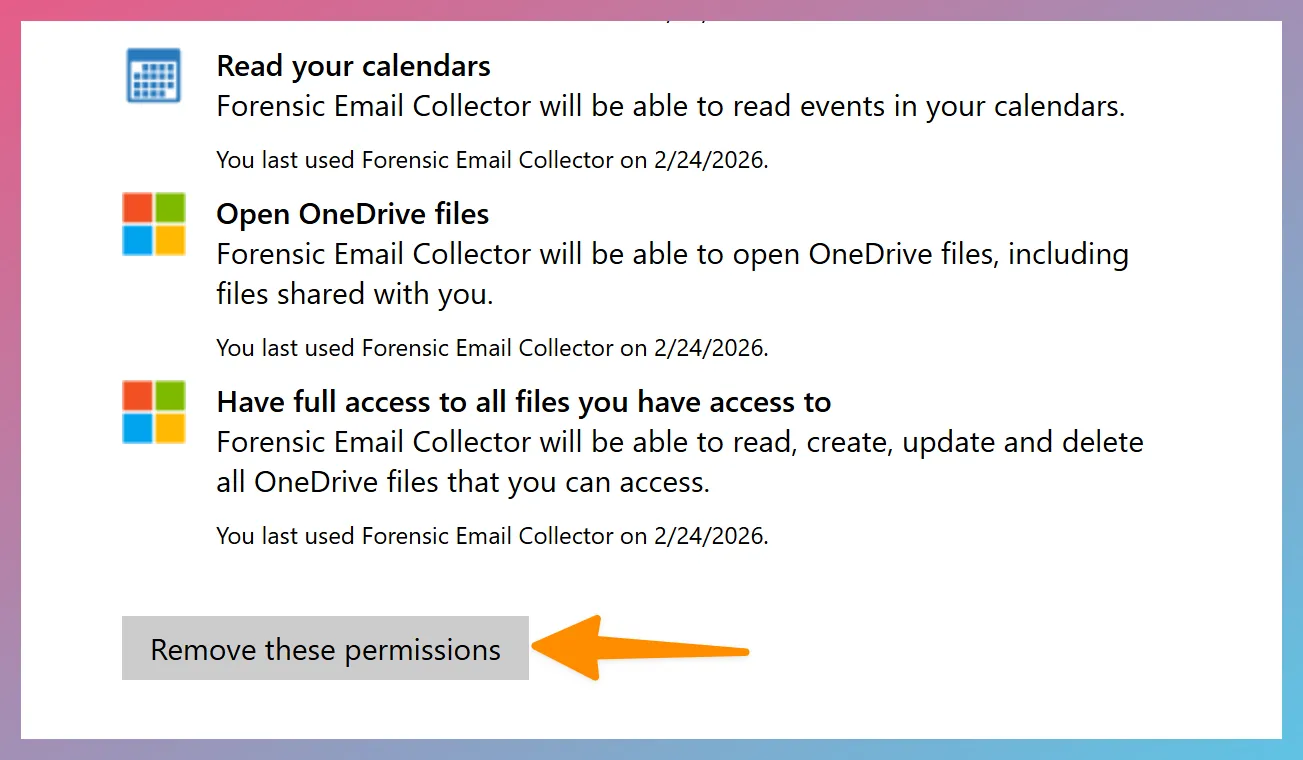
Advanced Scope Customization via Filename
Section titled “Advanced Scope Customization via Filename”In some cases, you may prefer to customize the permissions that Remote Authenticator requests to fit your workflow. For example, if you are certain that you won’t need IMAP access, there is no reason to request full Gmail permissions—you could go with read-only Gmail access instead.
It is possible to change Remote Authenticator’s behavior on Windows by setting flags in the executable’s filename. Valid flags are as follows:
R: Request read-only Gmail access. When not set, Remote Authenticator will request full Gmail access.
D: Request read-only Drive access. When not set, Remote Authenticator will not request access to Drive API.
C: Request read-only Calendar access. When not set, Remote Authenticator will not request access to Calendar API.
T: Request read-only access to Microsoft Graph Contacts.
O: Request read/write access to OneDrive and SharePoint.
In order to set these flags, put them between a set of double underscores in the Remote Authenticator filename (e.g., __RDC__).
Examples:
FECRemoteAuthenticator_v1.11.1.exe No flags are set. Default permissions will be requested (i.e., full Gmail, read-only Drive, read-only Calendar, read/write OneDrive / SharePoint Sites).
FECRemoteAuthenticator_v1.11.1__RDC__.exe Read-only access to Gmail, Drive, and Calendar. This allows all API-based functionality, but not IMAP.
FECRemoteAuthenticator_v1.11.1__RC__.exe Read-only access to Gmail, and Calendar. This allows an API-based Gmail acquisition with Google Calendar support but without Drive attachment support.
FECRemoteAuthenticator_v1.11.1__RD__.exe Read-only access to Gmail, and Drive. This allows an API-based Gmail acquisition with Drive attachment support but without access to Google Calendar.
FECRemoteAuthenticator_v1.11.1__R__.exe Read-only access to Gmail only. Suitable for API-based Gmail acquisitions without access to Google Calendar or Drive attachments.
FECRemoteAuthenticator_v1.11.1____.exe This will only request full access to Gmail, but no access to Drive or Calendar. Suitable for IMAP acquisitions only.
FECRemoteAuthenticator_v1.11.1__TD__.exe Read-only access to Graph API email, contacts, OneDrive and SharePoint. Suitable for Graph API acquisitions except OneDrive / SharePoint Attachments.
Why Use the Filename for Scope Customization?
Section titled “Why Use the Filename for Scope Customization?”You might be wondering why the scope customization is done by using the filename of the executable rather than options within Remote Authenticator. The goal here is to allow the requestor to hard-code the scopes they need by setting the filename ahead of time. Otherwise, the requestor would have to provide further instructions to the end-user to choose the appropriate settings, which is not always desirable.